Logoipsum + Figma: How to Supercharge Your Design Workflow
Figma is a standard for collaborative design, but tasks like locating a logo for a mockup can affect the pace of development. Integrating Logoipsum with Figma is an approach to maintaining creative momentum.
1. SVG Placement
Logoipsum provides assets in SVG format. In Figma, this means you get scalable layers that can be edited, recolored, and resized without pixelation. There's no need for local storage; you can grab what you need as you work.
2. Using the Figma Plugin
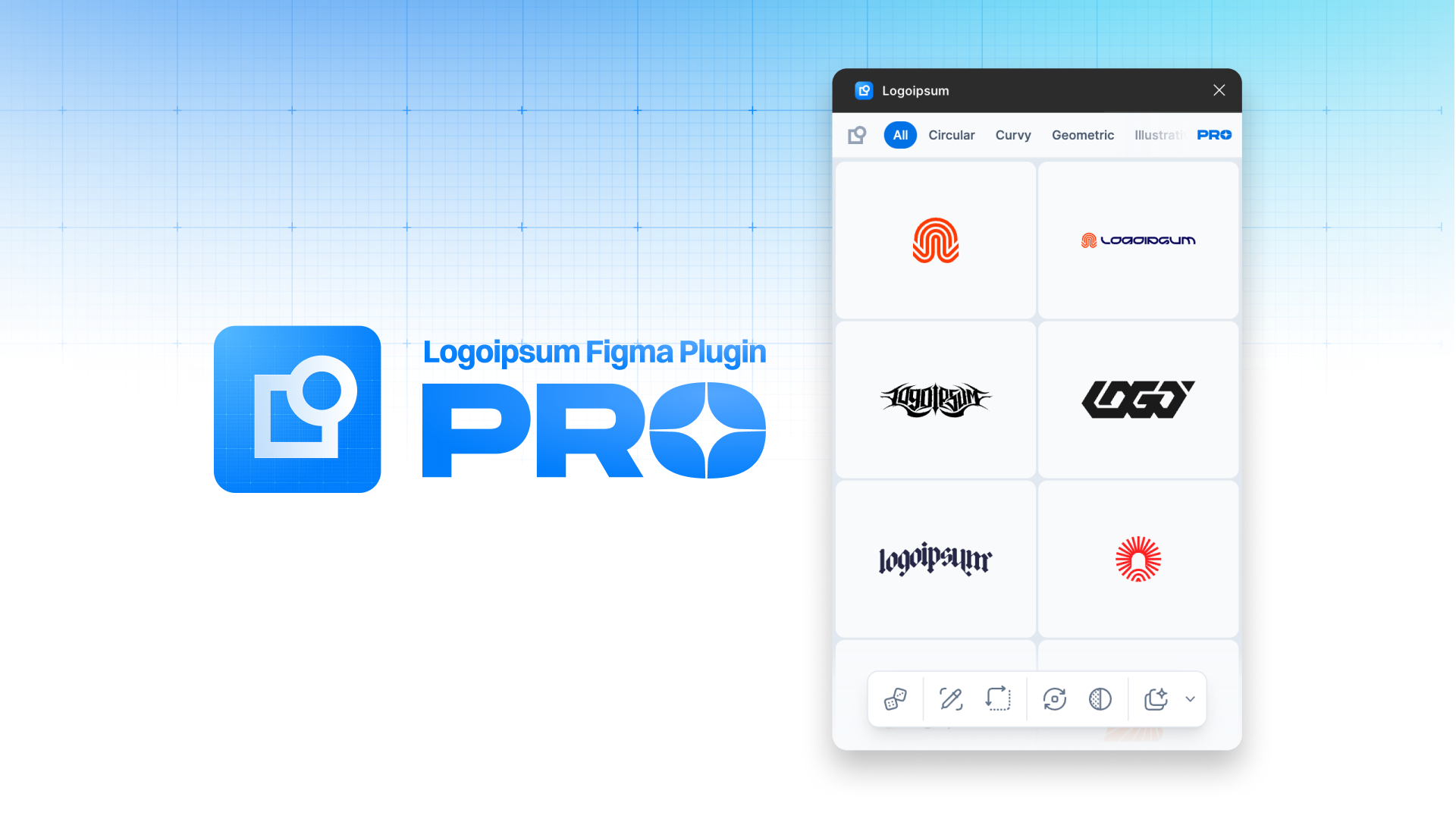
One way to use the library is through the Logoipsum Figma Plugin. It brings the collection into a sidebar next to the canvas. You can browse by style, such as Abstract, Pictorial, or Wordmark, and place them into frames.
3. Iteration with Variants
Because the logos are SVGs, you can use Figma's Selection Colors tool to change the palette of a placeholder in seconds. This allows for testing multiple branding directions within a mockup.
Practical Application: Workflow Integration
Integrating Logoipsum into a daily Figma workflow can be done as follows:
- Install the Plugin: Logoipsum is available in the Figma Community and can be installed here.
- Launch: Use Figma’s plugin search (Cmd/Ctrl + /) to open the interface.
- Random Feature: When starting a layout, the randomizer can populate a header to verify visual weight.
- Pro Features: For additional capabilities, Logoipsum Figma Pro offers features such as library syncing.
Summary
Focusing on user experience problems is often more productive than searching for logos. Professional placeholders allow for the delivery of detailed mockups.
- Native Integration: Use the official plugin to reduce context switching.
- Vector Assets: Use SVGs for scalability and flexibility.
- Early Iteration: Test brand placement before a final logo is available.
- Expanded Workflows: Figma Plugin Pro provides additional features for projects with high-volume requirements.
The Logoipsum Figma Plugin is a tool for assisting with design speed.