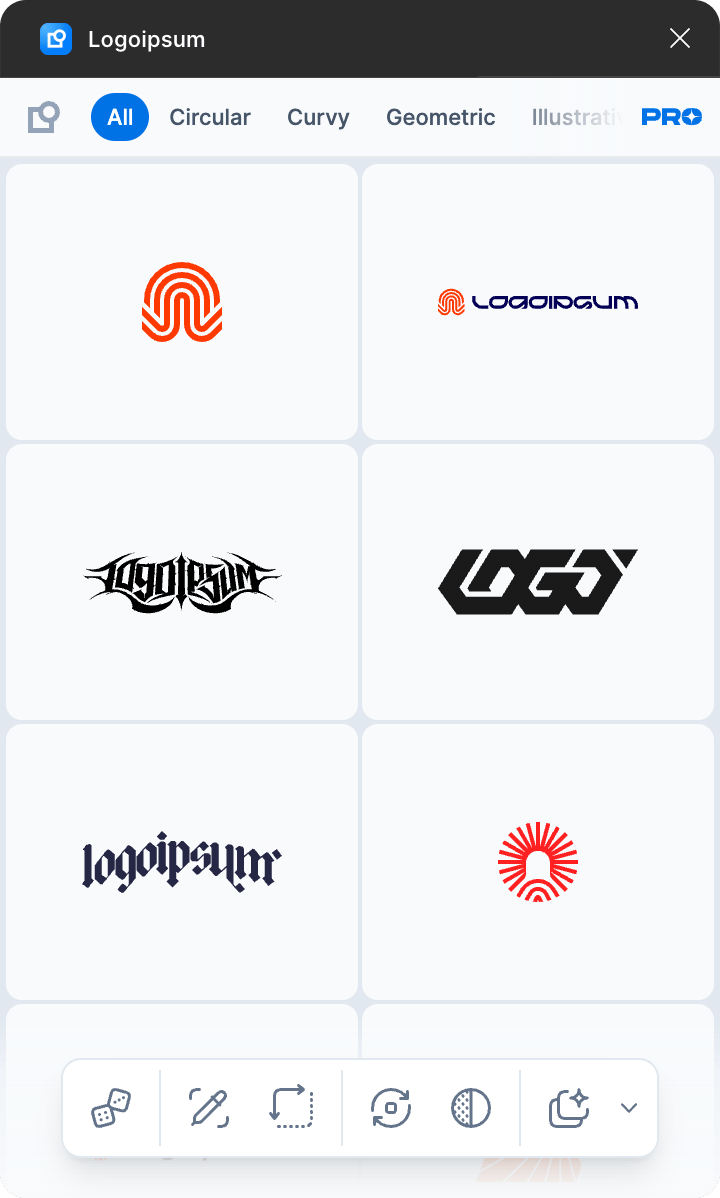
No, it's the current one, but it upgraded to include PRO features and subscription.

INTRODUCING
Logoipsum Figma Plugin now comes with extra utility features & tools available only to PRO subscribers. It also unlocks full Logoipsum logo library full sync with logoipsum.com.
Feature Details Introduction
IntroductionLogoipsum Figma Plugin PRO has been upgraded with various utility features to help make your workflow in Figma faster.
Along with several UI improvements, the PRO version aims not only to provide placeholder logos but also to make it faster and easier to further customize them.
PRO users will also gain access to the complete logo library, fully matched with the logoipsum.com website.
Grouping
Each logo has been adjusted to accommodate PRO features in the Logoipsum Figma plugin. It is now wrapped in groups to differentiate between logogram/logomark and logotype. This grouping structure also includes special group names: Shadow, Highlight, Outline, Blend, Var, Monovar, and None. Each of these groups receives special treatment when used with the "Adapt Color" and "Swap Color" features.
Follow this grouping structure and apply it to any logos or graphics to make them compatible with all utility features in the Logoipsum Figma Plugin.
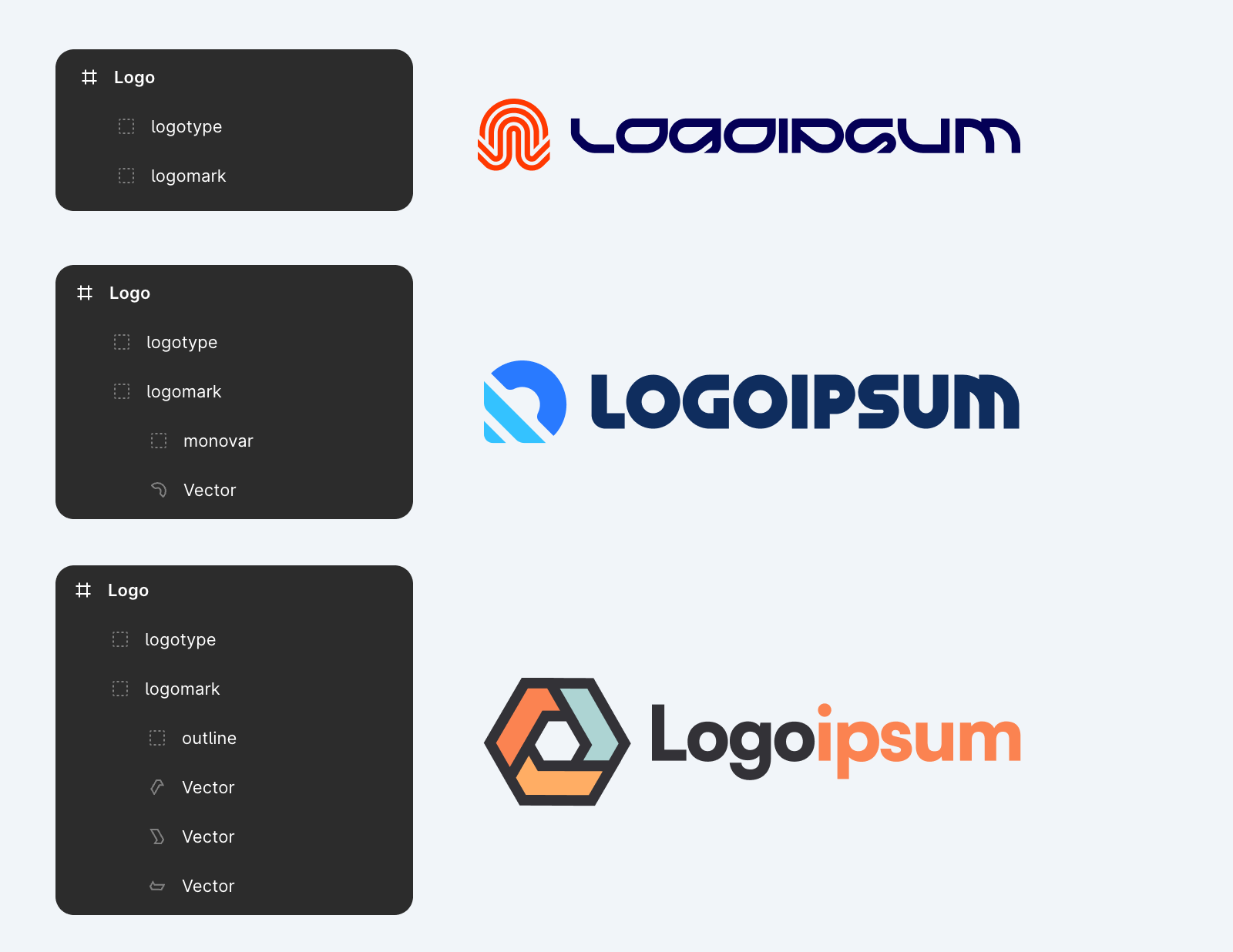
Logo frame/frames inside a frame
Let's say you have an UI layout that has a frame or multiple frames named "Logo" inside it. By selecting the parent frame and placing a logo the plugin will detect every inner "Logo" frames and replacing it.
Combine this with Adapt Color and Adapt Size feature to match the logo size and the color of your UI design.
 Component
By default, the plugin detects the size of the original component, and the newly placed logo will match it. It will also preserve the component's name.
 Frame
FrameThe logo replacement mainly works within Frame element. Only frames named "logo" (case-insensitive) or any name containing "logo" (case-insensitive, e.g., "Brand Logo") will be replaced. Non-standard names like "Brand Logo" or any name containing "logo" will be preserved.
For any frame that does not have or does not contains "logo" in its name, it will scans all of the elements inside the frame and will look for any frame that has name "logo", and replace it with the new logo.
 Component/Frame/Group inside Section
The placed logo will remain inside the Section.
Feature Details
Random Logo
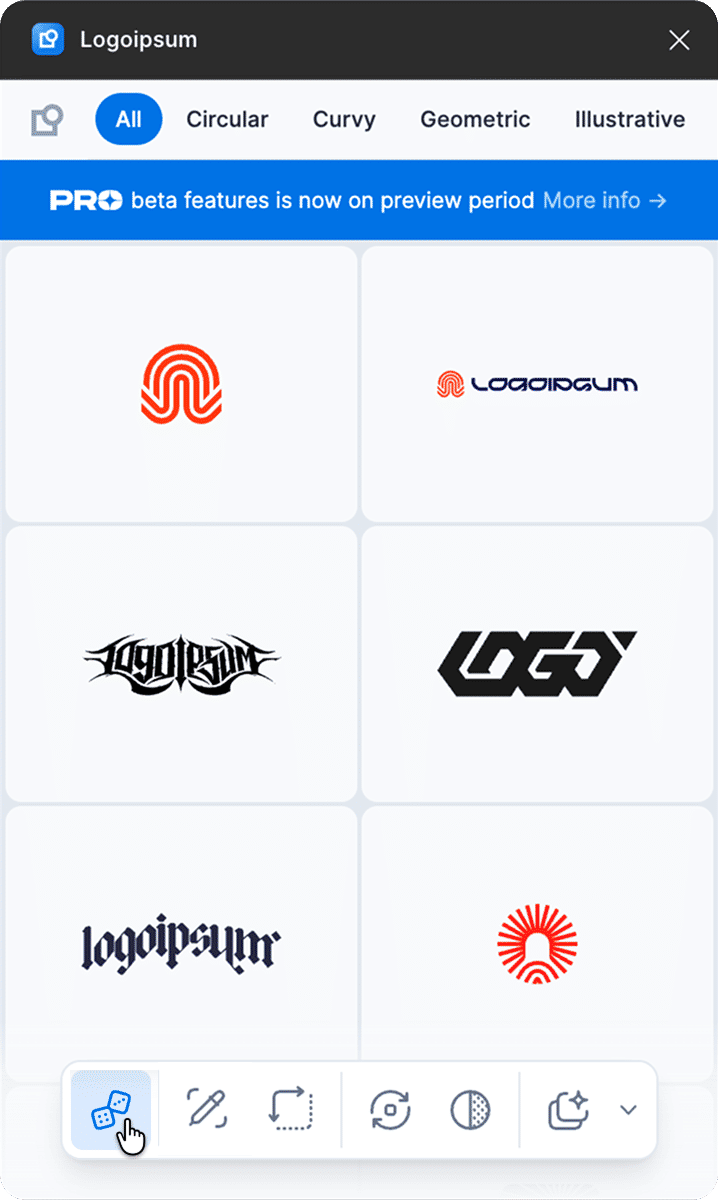
The good old "I'm feeling lucky" feature. It simply picks a random logo and places it in the Figma workspace.
Type
1-click action
Feature Details
Adapt Color
Applies colors from the previous logo to the newly placed logo.
This can be applied to a Frame or Group named "Logo" (case-insensitive). If the previous logo contains logogram/logomark and logotype groups, the newly placed logo will adapt colors accordingly. If the previous logo does not follow this structure, the dominant color from the previous logo will be applied.
The Adapt Color feature detects special groups and applies specific treatments to them.
Type
Toggle
Adapt color persistence state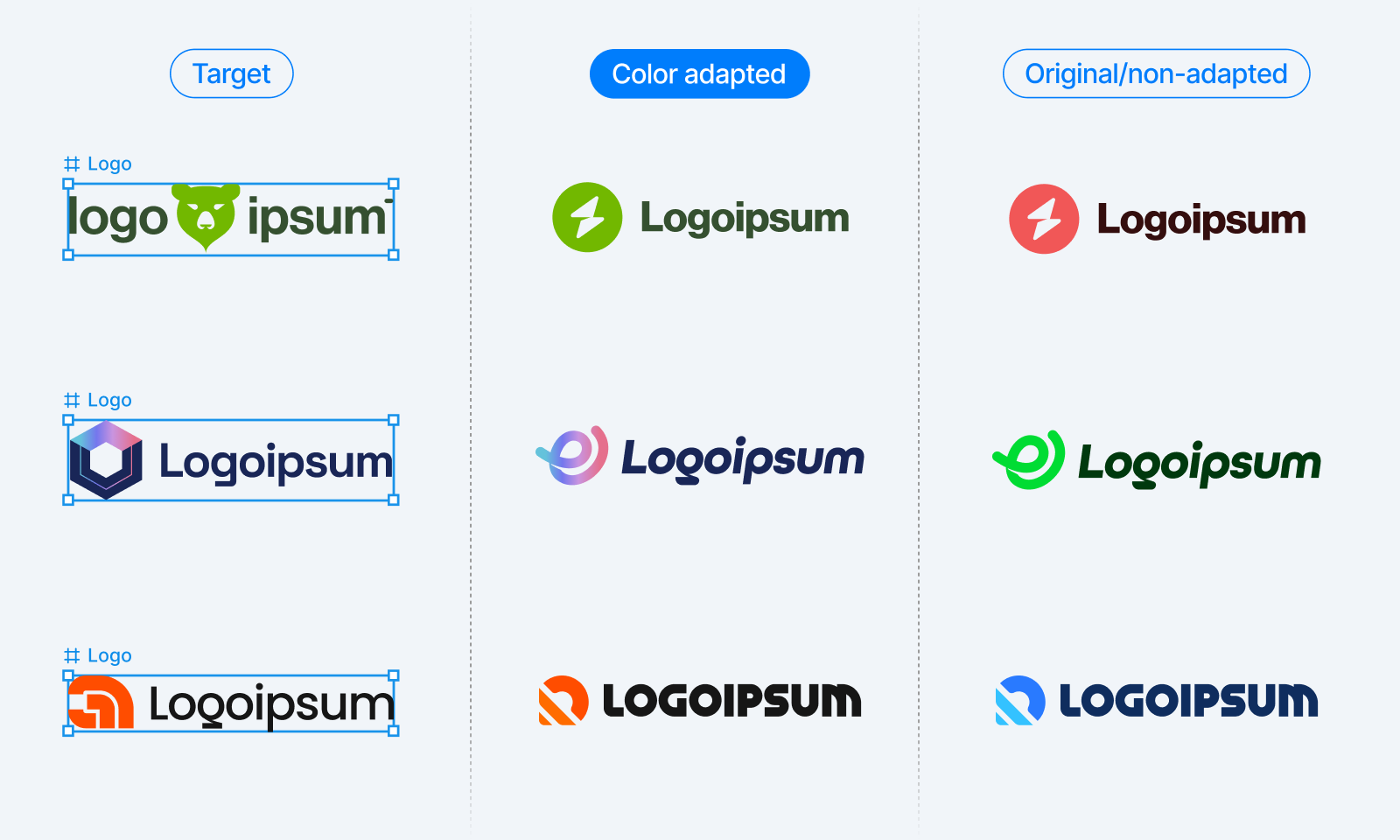
The plugin will remember if the last time you activate this option, next time you open the plugin it will toggle on/off this option by default.
Feature Details
Adapt Size
The newly placed logo will adapt to match the size of the previously placed logo.
Size adaptation applies only to Frames or Groups named "Logo" (case-insensitive). For Components, Adapt Size is automatically enabled under the hood.
Type
Toggle
Adapt size persistence state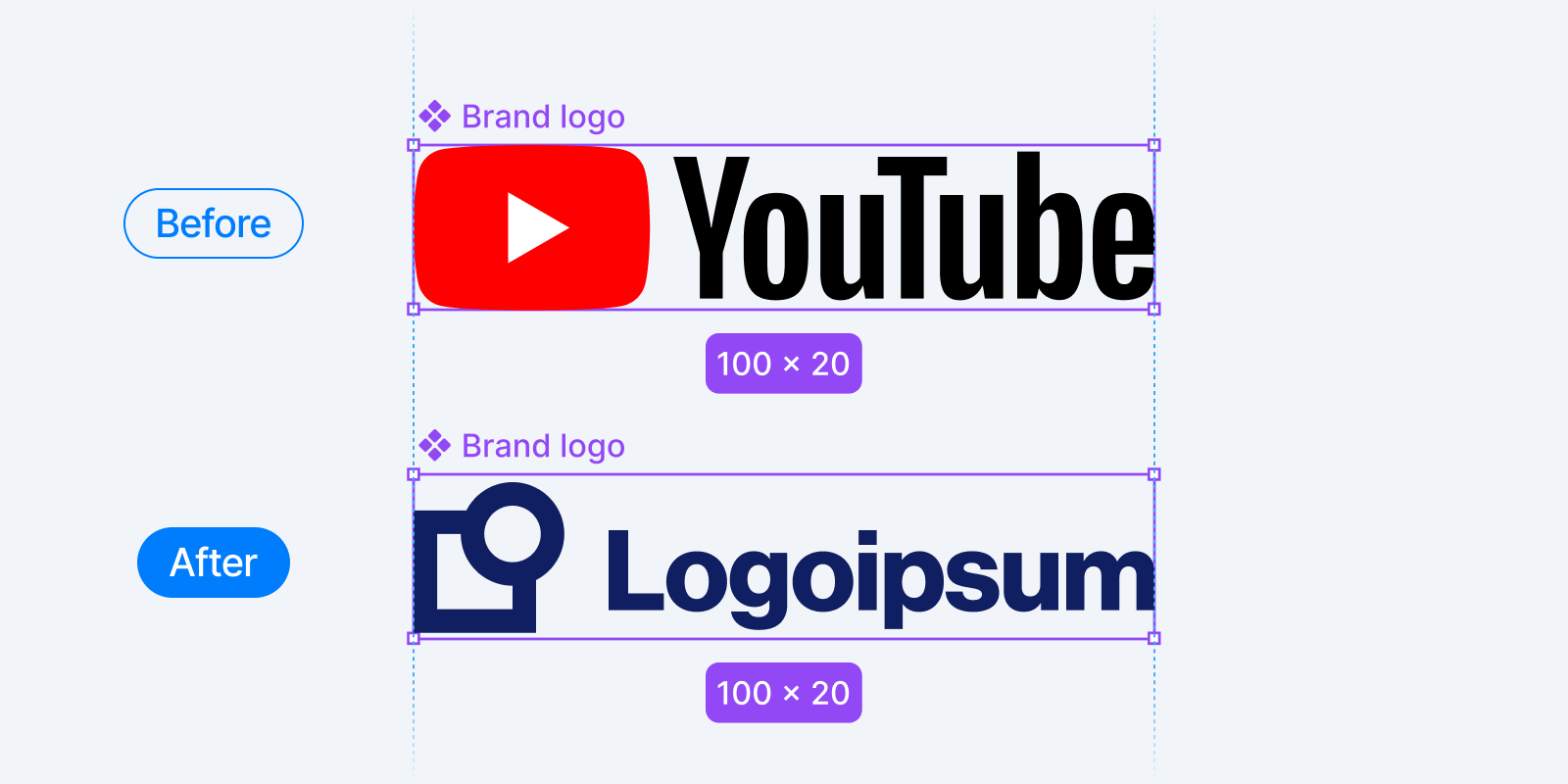
The plugin will remember if the last time you activate this option, next time you open the plugin it will toggle on/off this option by default.
Feature Details
Swap Color
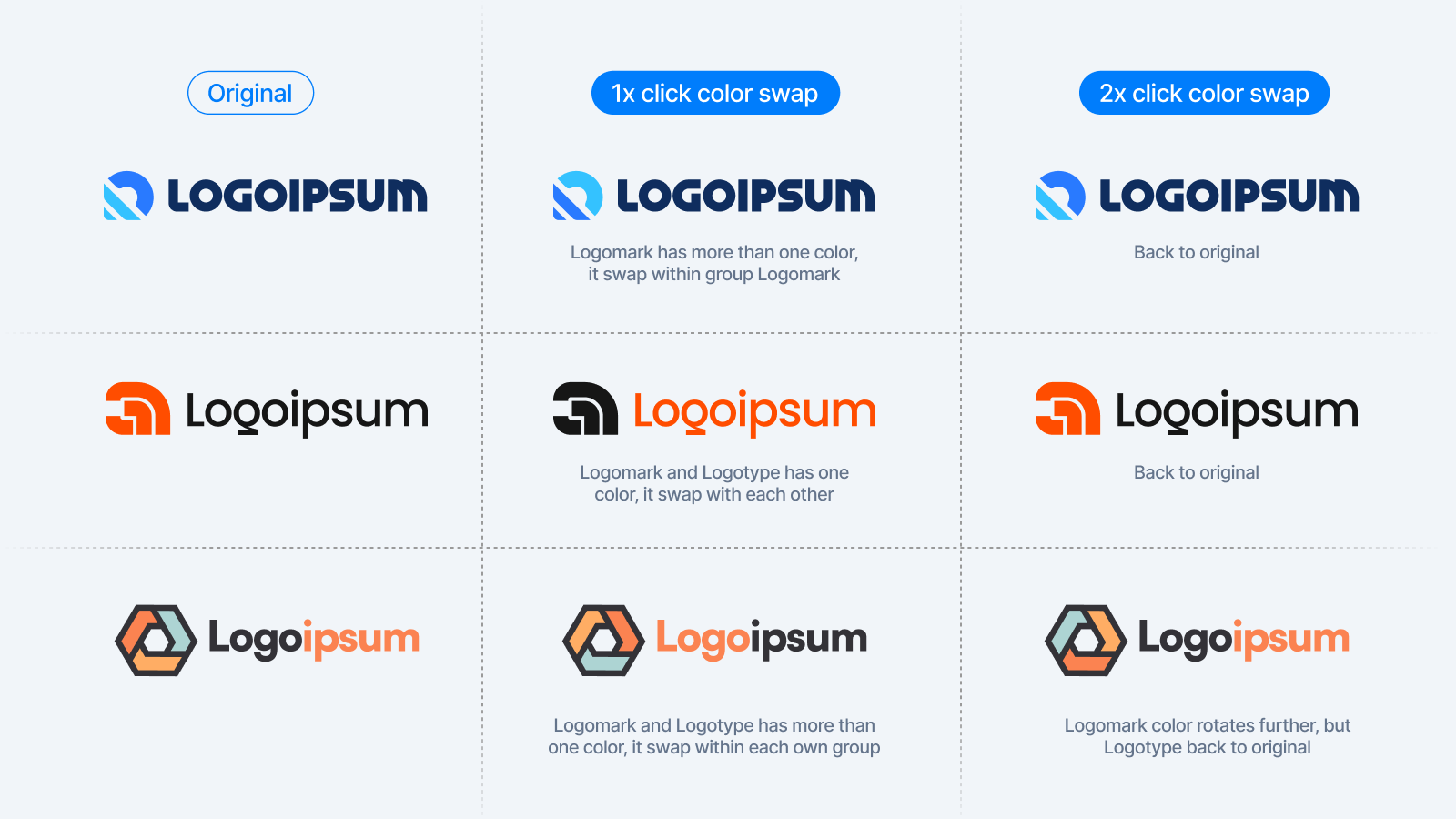
Swaps colors between the logomark/logogram and logotype if each has a single color.
If the logomark/logogram contains multiple colors, the swap will be limited to the logomark/logogram only.
Clicking the Swap Color button multiple times will cycle through different swaps. This feature also applies special treatments to groups with specific names.
Type
Repeat action
Feature Details
Generate Dark Mode
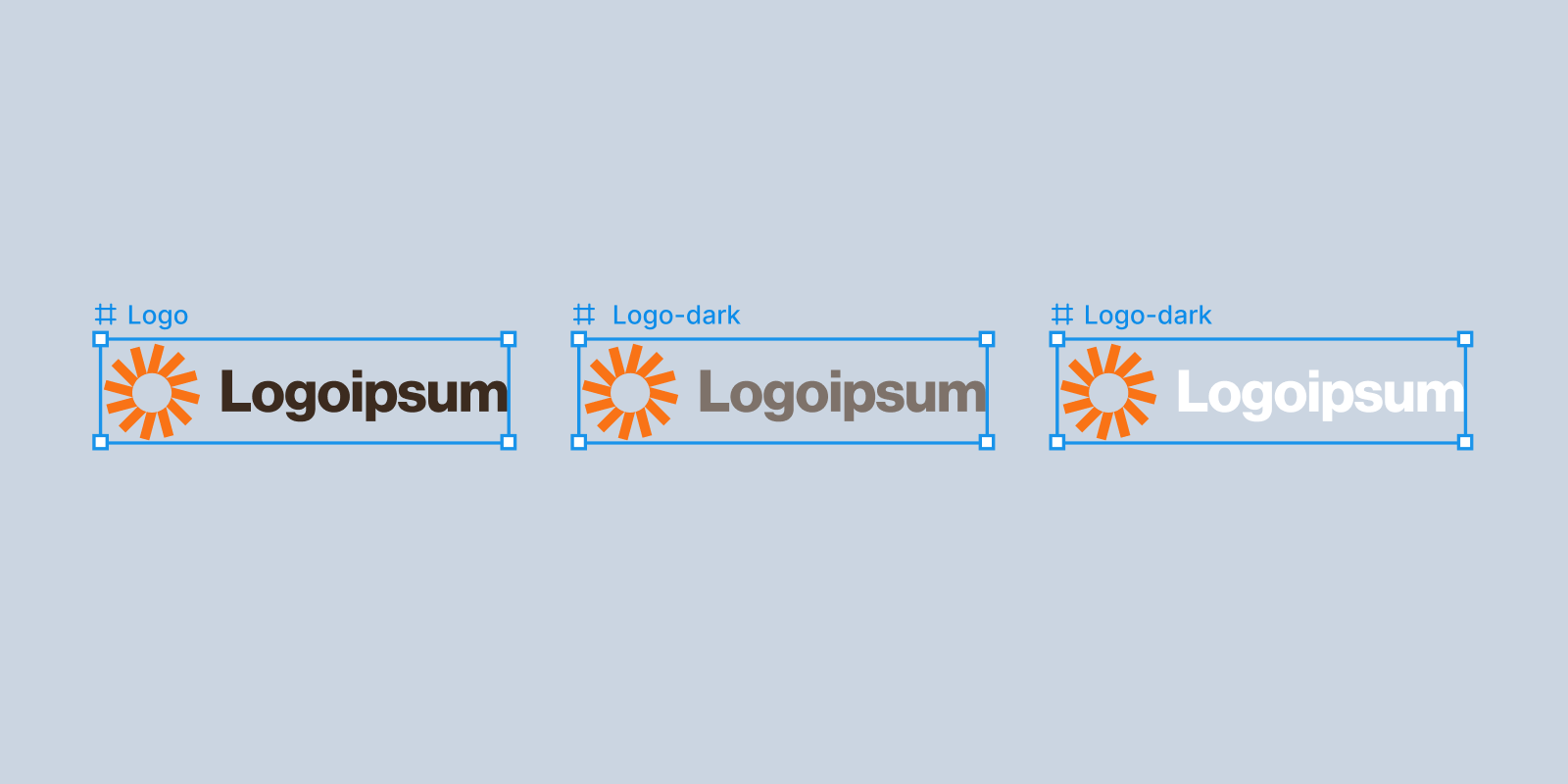
Generates dark mode versions of the selected logo. It will create two dark variants next to the original logo.
Type
1-click action
Feature Details
Advance Copy SVG
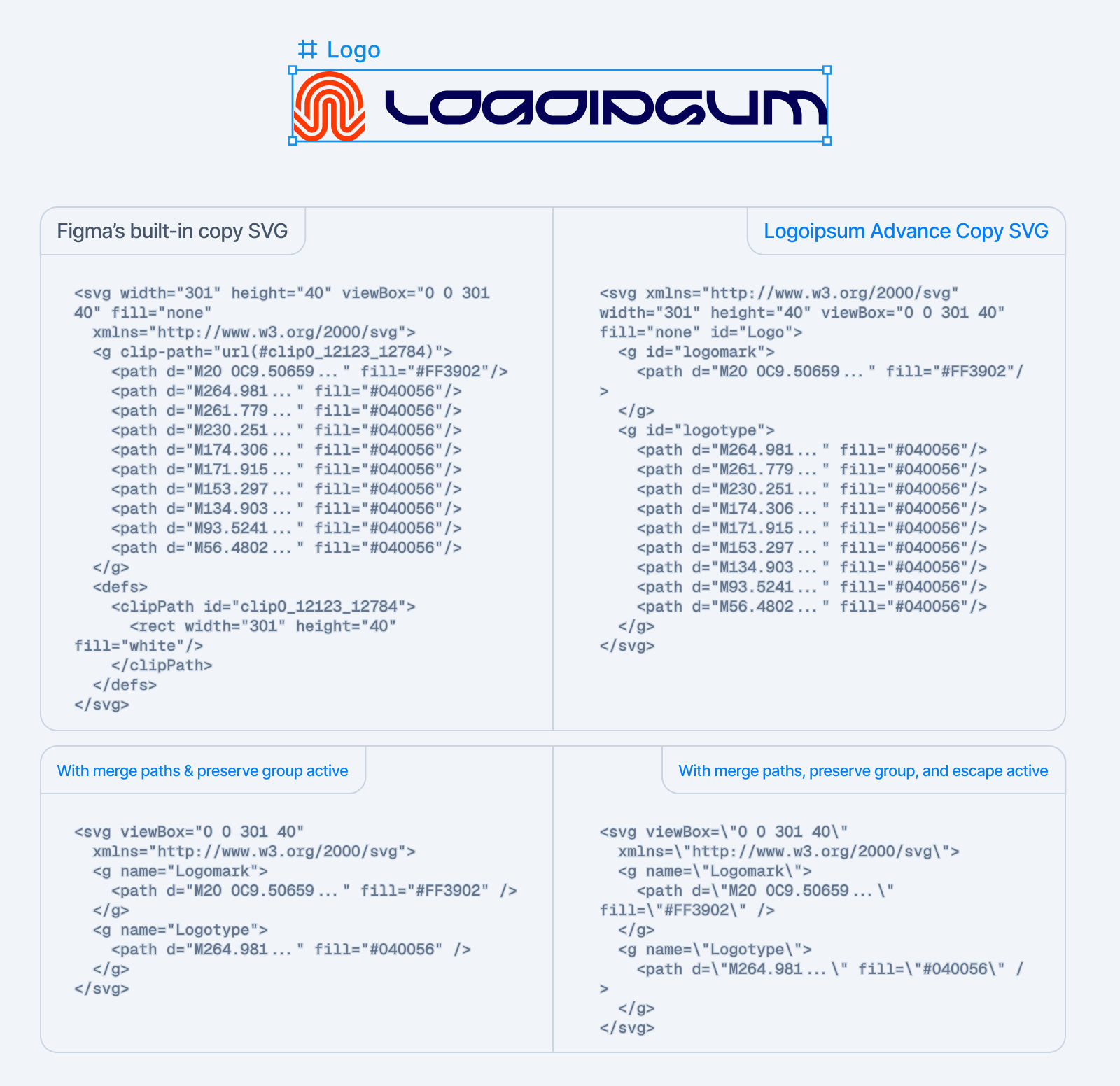
Copies the SVG code while preserving the layer group structure and group names as the IDs.
It also includes an option to merge all paths, Preserve groups, and Escape double quotes. The logo should follow the logomark/logogram and logotype grouping structure.
Note: Figma provides an option to preserve group structure, but the Logoipsum plugin's Advanced Copy SVG feature simplifies it further by removing unnecessary grouping and frame's defs and clipPath.
Type
1-click action
Copy SVG options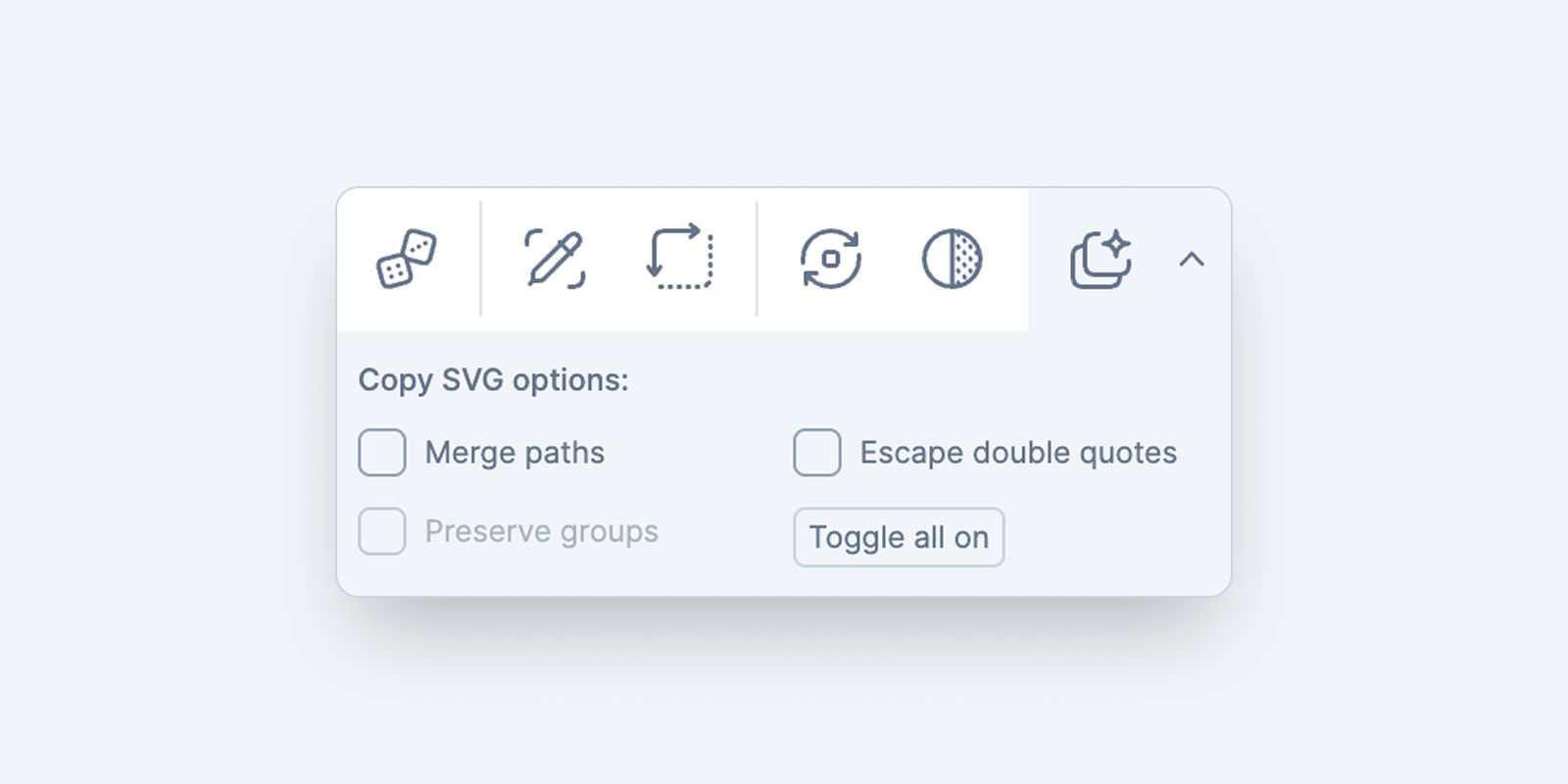
Open the caret to reveal the copy SVG options. Currently there are 3 options you can choose: Merge Paths, Preserve Groups, and Escape Double Quotes. Also there's one to toggle on/off all of the options. The Preserve Groups option only available when Merge Paths is active, it's because Merge Paths will remove the groups by default. When Merge Paths is inactive, the groups are preserved by default.
Merge Paths
Merge paths is destructive, when paths merges it means one fill color will be applied to the merged paths.
If paths wrapped with group or multiple groups, and you want to keep it merged among its group, you can use Preserve Groups option.
Preserve Groups
By default paths will not get merged, and groups are preserved. This is why this option is only available when Merge Paths is active, to help you keep preserved groups and give a command to only merge paths that are within its group.
Escape Double Quotes
Escape double quotes help you escape double quotes in SVG code. This is useful for those who deal with JSON data.
Example SVG code output